
BeeAvail text message program
For message reviewers
- Business: BeeAvail, a booking tool for neighborhood families and teens offering child care, pet care and yard work. Website: https://beeavail.com
- Who receives texts: only registered BeeAvail account holders who added and verified their own mobile number.
- Message types: booking requests, booking confirmations, changes and cancellations, booking reminders (1 week or 2 days before, with an optional second reminder), open request and group request alerts, nudges to respond to a request, and one-time account verification codes. Transactional only - no marketing or promotional messages.
- Opt-in method: website form inside the account, at Settings > "How you get alerts". The consent box is unchecked by default. No keyword, paper, verbal or purchased opt-in exists.
- Opt-in page (requires signing in): https://beeavail.com/dashboard?tab=settings - the screenshots below show that exact screen, which is why this public page exists.
- Privacy Policy: https://beeavail.com/privacy - Terms and Conditions: https://beeavail.com/terms
What BeeAvail does
BeeAvail lets a family publish a simple card for a teen or kid who offers local services - child care, dog walking, pet sitting, yard work and similar. Neighbors use a shared link to request a date and time. The family or the teen reviews each request and confirms or declines it. Payment is arranged directly between the two households; BeeAvail does not process payments. Because a booking is time-sensitive, account holders can choose to receive the same alerts they already get by email as text messages instead, or in addition. Texts are always about that person's own bookings.
How people opt in
There is exactly one opt-in path: a signed-in account holder turns texts on themselves, inside their own BeeAvail account. Consent is collected by BeeAvail, for BeeAvail messages only, and is never shared, sold or transferred. There is no keyword opt-in, no paper form, no verbal opt-in, and no purchased or shared lists.
- The person creates a BeeAvail account at https://beeavail.com and confirms their email address.
- Once signed in, they open Settings, then How you get alerts and reminders (at https://beeavail.com/dashboard?tab=settings, which requires signing in). Bookers see the same panel via the Settings gear at https://beeavail.com/bookings?tab=settings, inside Request and booking reminders.
- They type their own mobile number and tick the consent box. The box is unchecked by default and the Send code button stays disabled until they tick it themselves - see screenshots 1 and 2.
- BeeAvail texts a 6-digit code to that number. The person types the code back in and presses Confirm - see screenshot 3. Only after that does the number count as opted in.
- They then choose Text or Both to start receiving booking alerts by text. Choosing Email at any time stops the texts.
Screenshots of the real opt-in screen
These are unedited screenshots of the live BeeAvail app. The consent wording shown is the exact wording in the product.
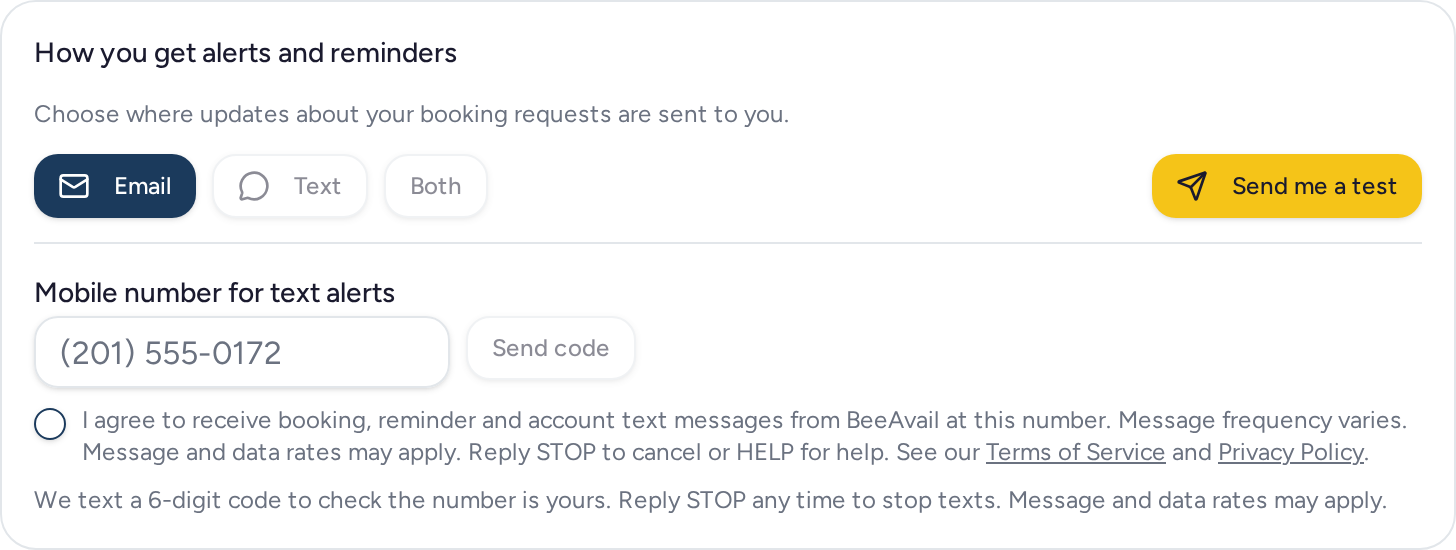
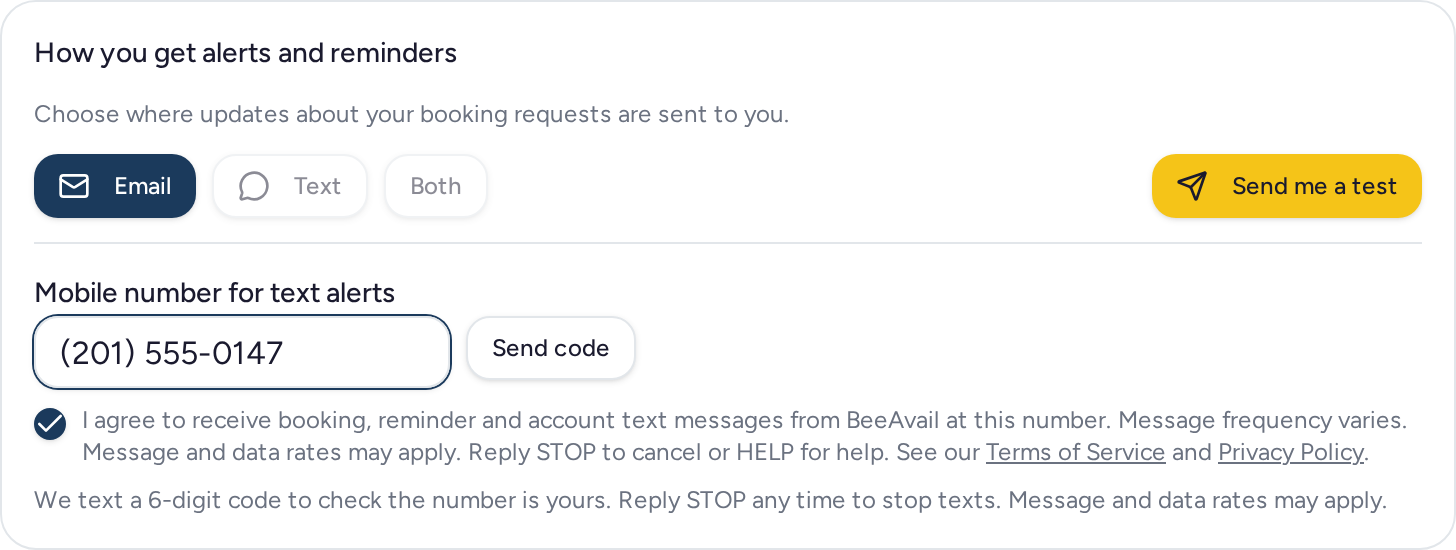
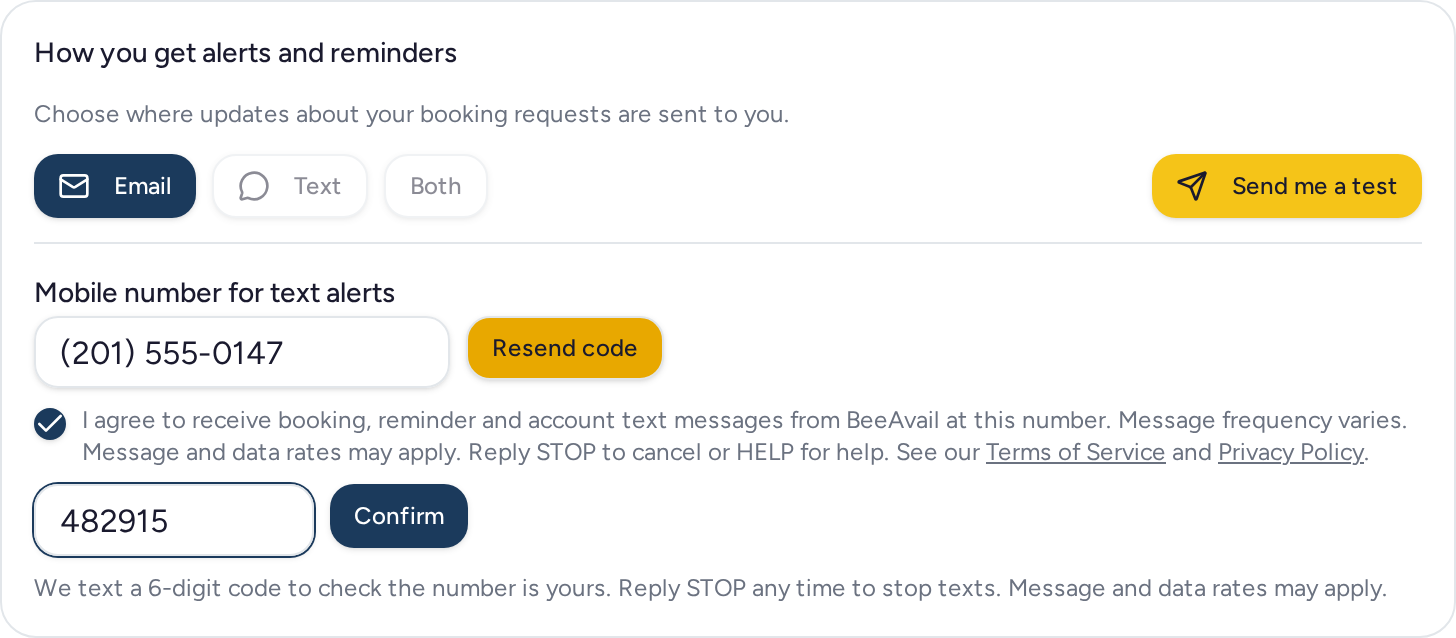
Exact consent wording shown next to the checkbox
"I agree to receive booking, reminder and account text messages from BeeAvail at this number. Message frequency varies. Message and data rates may apply. Reply STOP to cancel or HELP for help. See our Terms of Service and Privacy Policy."
Helper text below the field: "We text a 6-digit code to check the number is yours. Reply STOP any time to stop texts. Message and data rates may apply."
Sample messages
- BeeAvail: New booking request for [Teen Name] - [Date], [Time], [Service]. Review it: https://beeavail.com/bookings Reply STOP to opt out.
- BeeAvail: Your booking with [Teen Name] on [Date] at [Time] is confirmed. Details: https://beeavail.com/bookings Msg & data rates may apply. Reply STOP to opt out.
- BeeAvail reminder: [Teen Name] is booked on [Date] at [Time] for [Service]. https://beeavail.com/bookings Reply STOP to opt out.
- BeeAvail: [Service] on [Date] was cancelled. View your bookings: https://beeavail.com/bookings Reply STOP to opt out.
- BeeAvail: [Helper Name] offered to help with your open request for [Service] on [Date]. Review offers: https://beeavail.com/find Reply STOP to opt out.
- BeeAvail: [Booker Name] sent a request to you and a few other helpers - first to confirm gets the job. https://beeavail.com/dashboard Reply STOP to opt out.
- BeeAvail: [Booker Name] is checking in on their request for [Date]. Review it: https://beeavail.com/dashboard Reply STOP to opt out.
Stopping texts and getting help
Reply STOP (also STOPALL, UNSUBSCRIBE, CANCEL, END or QUIT) to any BeeAvail text to stop all messages to that number. Reply START, UNSTOP or YES to turn them back on. Reply HELP or INFO for help, which returns: "BeeAvail booking alerts. Manage them at beeavail.com. Reply STOP to opt out. Msg & data rates may apply." You can also switch back to email at any time in your alert settings, or email us at support@beeavail.com.
Message frequency varies with your own bookings. Message and data rates may apply. Carriers are not liable for delayed or undelivered messages. We do not share mobile numbers or SMS consent with third parties or affiliates for marketing or promotional purposes.